Howard Hughes - Register With Us
Register with Us
Prospective suppliers must complete onboarding in the Howard Hughes Supplier Management Portal powered by Apexanalytix. This guide outlines each step of the registration and submission process from start to finish. The portal may be used for ongoing profile management, including updates to company information and required documentation. All information is subject to review and approval.
Navigate to your inbox and click to open the Howard Hughes – Invitation to Register.
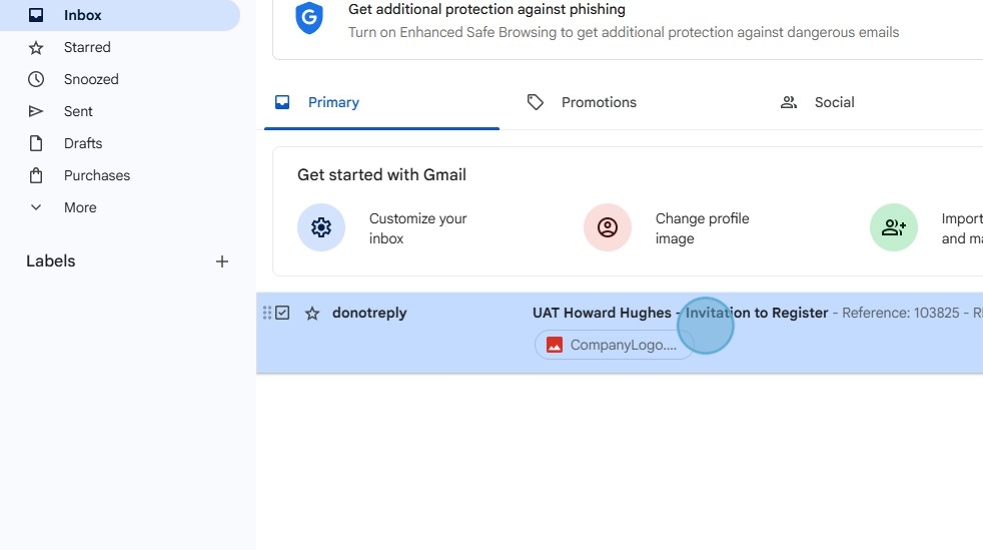
Review the content, then click Change Password to set up your Apexanalytix account.
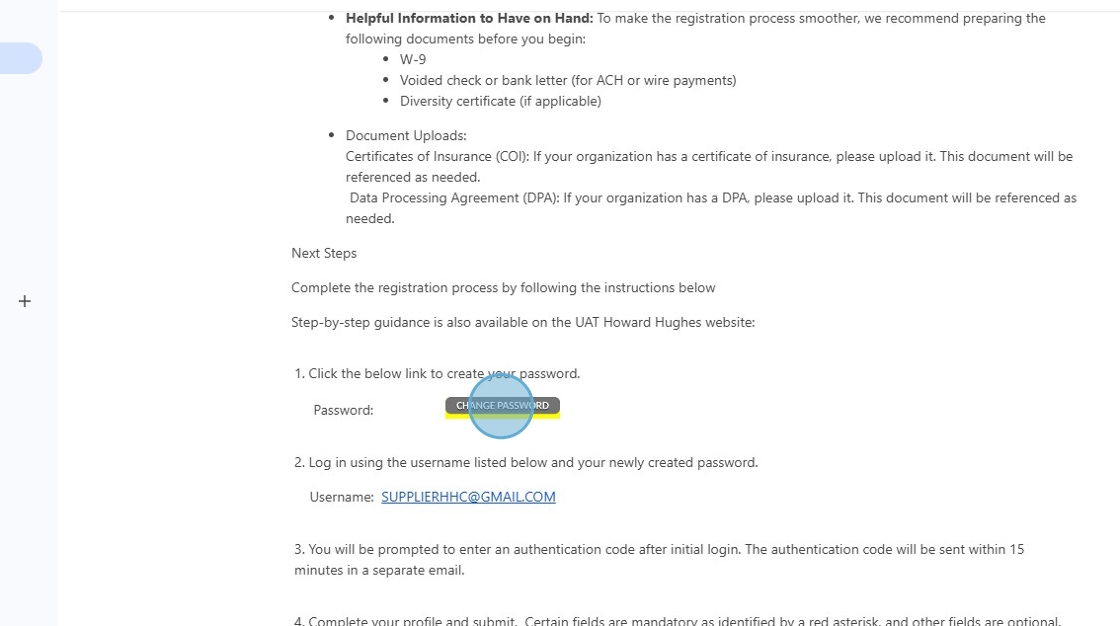
Create a password then click Change Password to proceed.
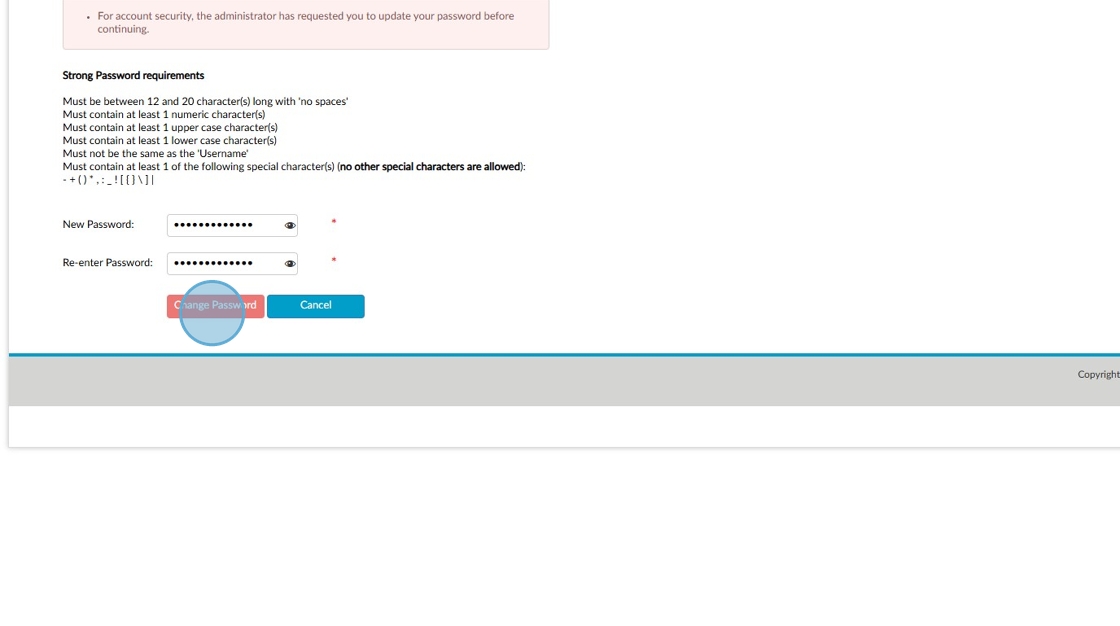
Enter your username and password to log in.

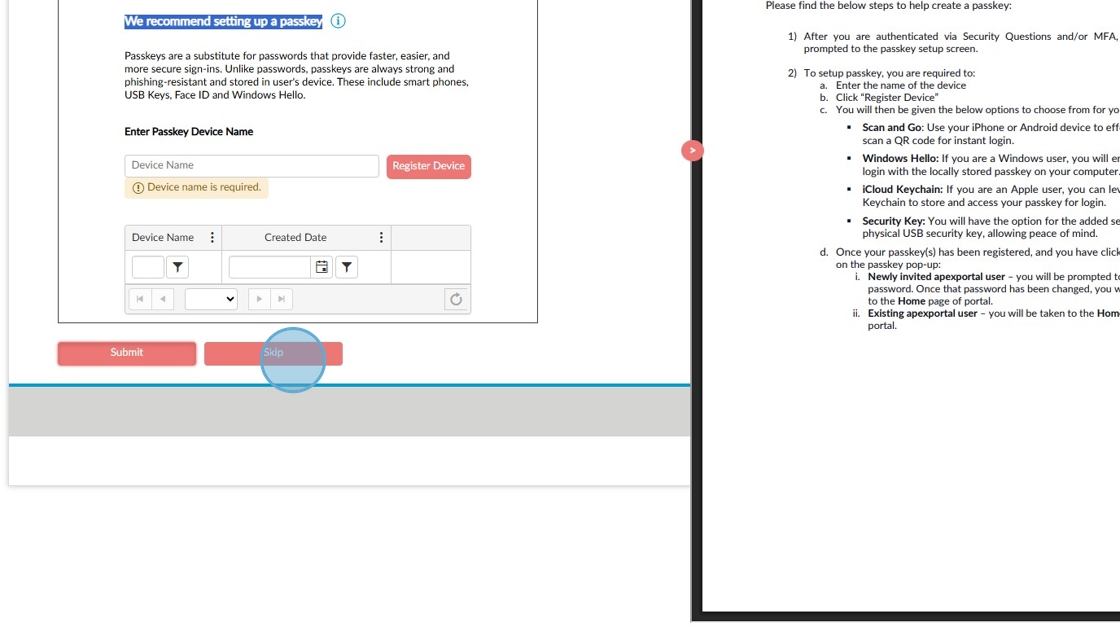
Click “Skip” and keep the Howard Hughes Supplier Management Portal page open.
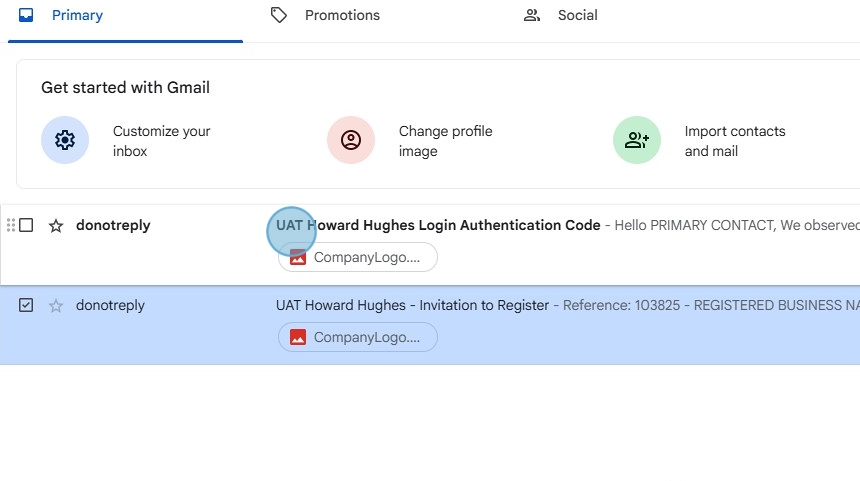
Navigate back to your inbox and click UAT Howard Hughes Login Authentication Code.
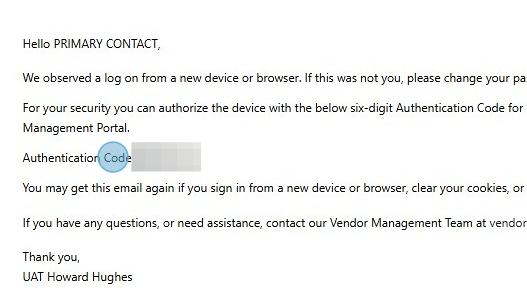
Take note of the Authentication Code provided in this section, then navigate back to the Howard Hughes Supplier Management Portal page.
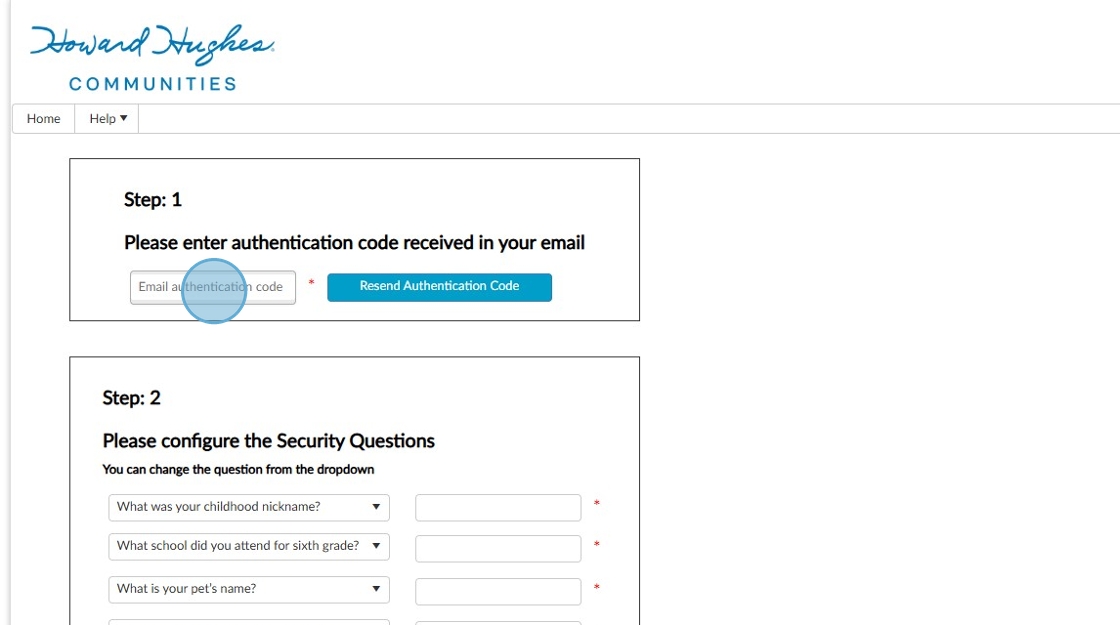
Enter the Authentication Code from the email in Step 1, then configure your security questions in Step 2.
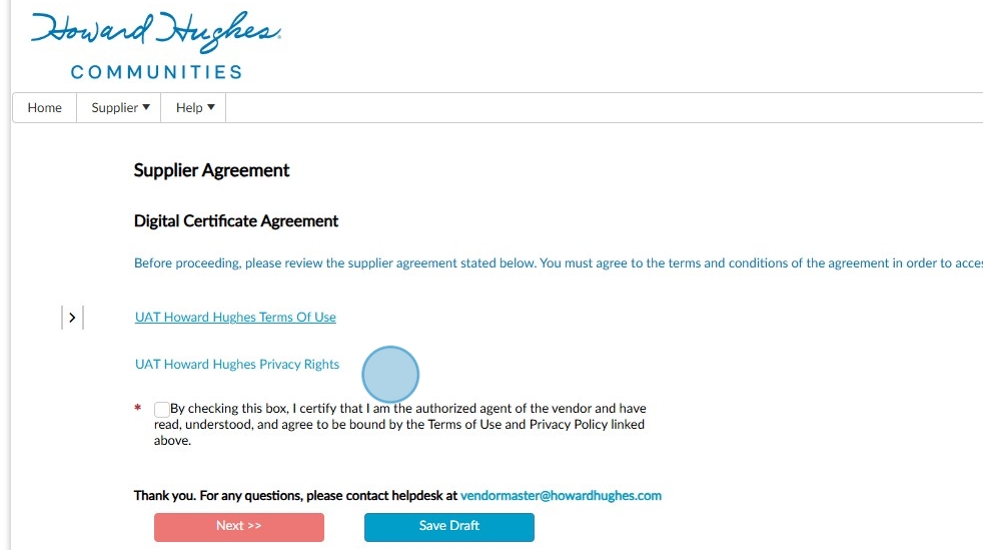
Review the Howard Hughes Terms of Use and Privacy Rights, select the checkbox to acknowledge, then click Next.
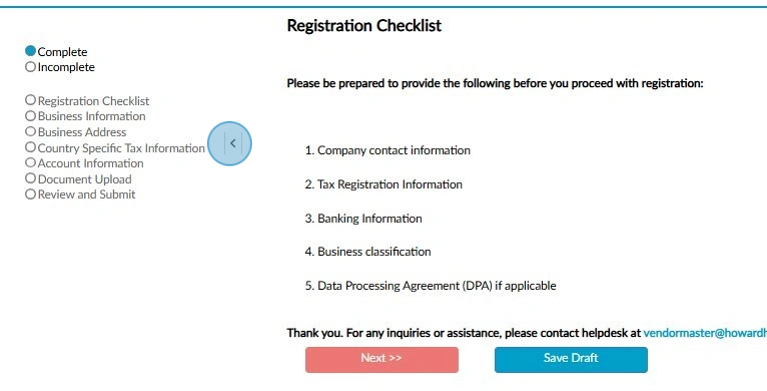
Review the Registration Checklist to gather required documents and information, then click Next to continue to the next section. Repeat this step until you reach Document Upload.
Tip: Click the arrow to expand and view all upcoming sections.
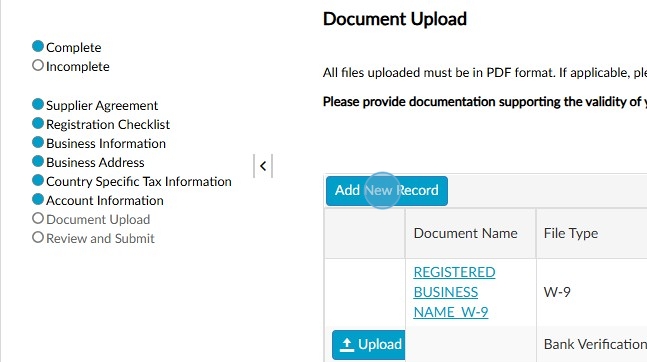
Click Upload to attach required documents or click Add New Record in the to provide additional supporting documents.
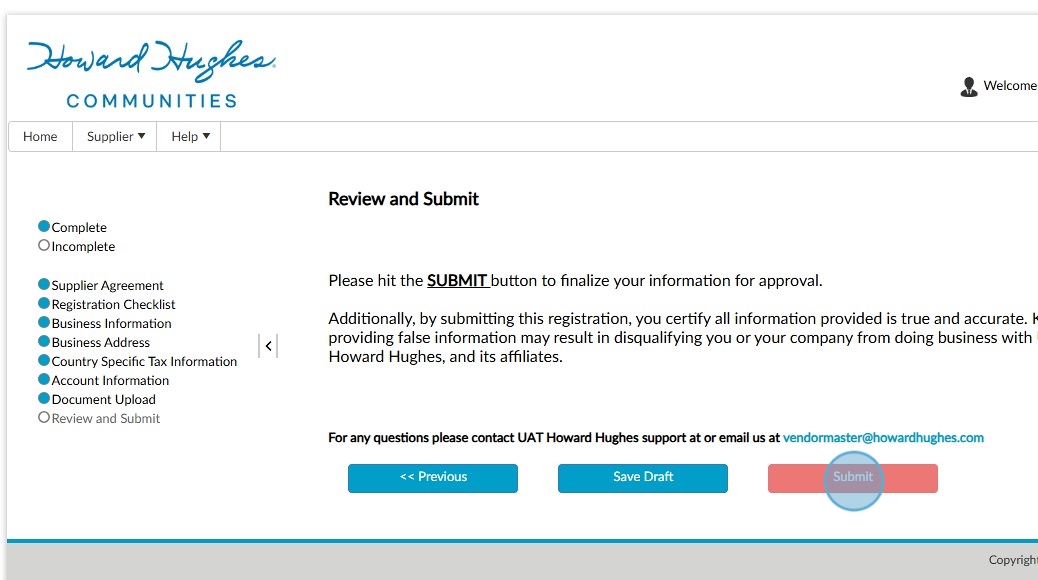
Once all required fields are completed, click Submit to send the form for review.
Tip: If you have questions or need assistance, contact our team using the information provided in Contact Us.