Howard Hughes - Supplier Setup Information Request

Update Company Information

Approved suppliers may update their company information through the Howard Hughes Supplier Management Portal powered by Apexanalytix. This guide outlines the steps required to submit profile updates and supporting information for review. The portal may also be used to respond to requests for additional documentation or clarification. All updates are subject to review and approval.
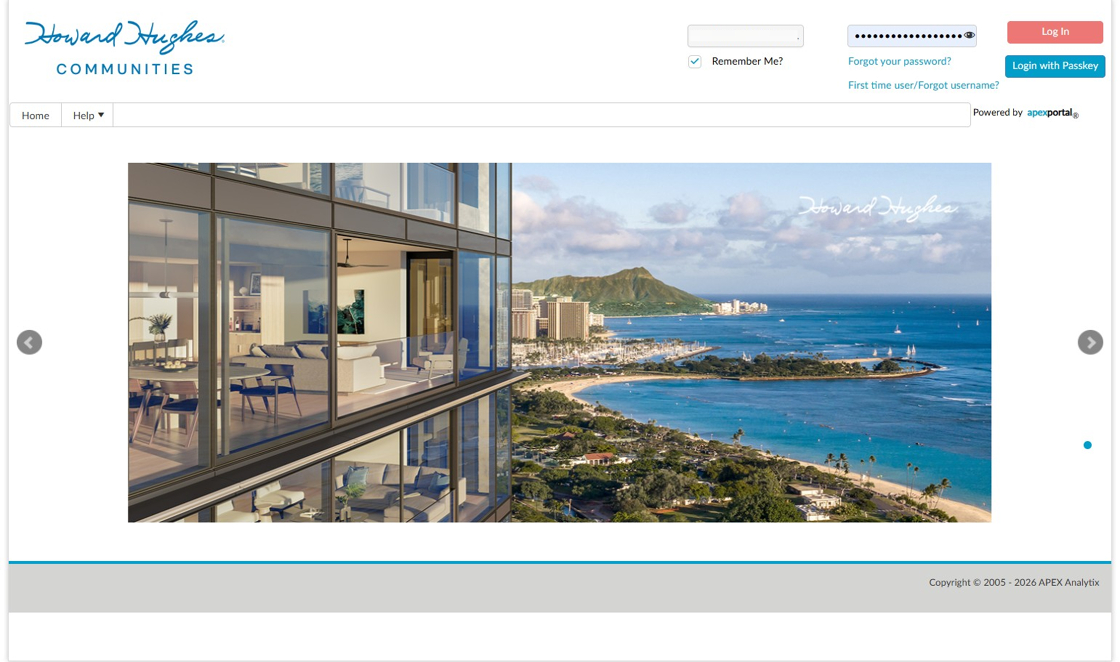
Navigate to the Howard Hughes Supplier Management Portal and log in.

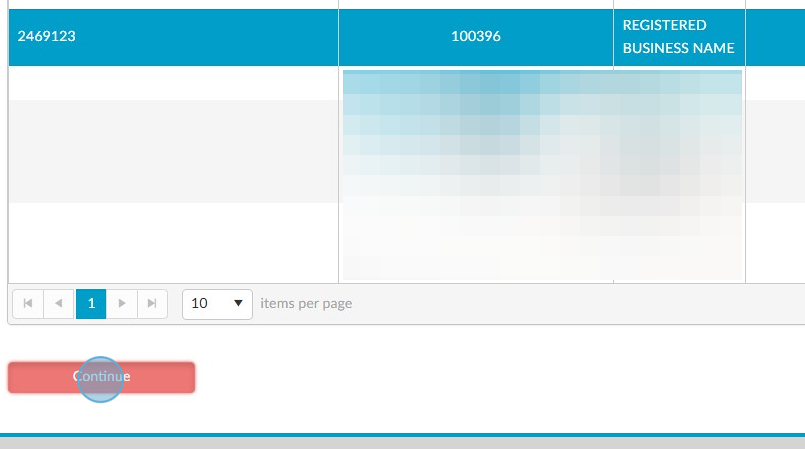
Click the supplier profile’s name then click Continue.

A web page showing a data table with registration numbers, business names, and a blurred cell, with a red “Continue” button at the bottom.

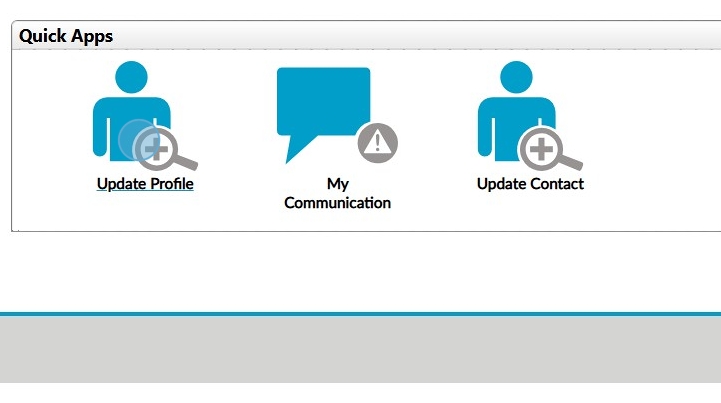
Click Update Profile.

Three icons labeled “Update Profile,” “My Communication,” and “Update Contact” are shown under a heading “Quick Apps” on a digital interface.

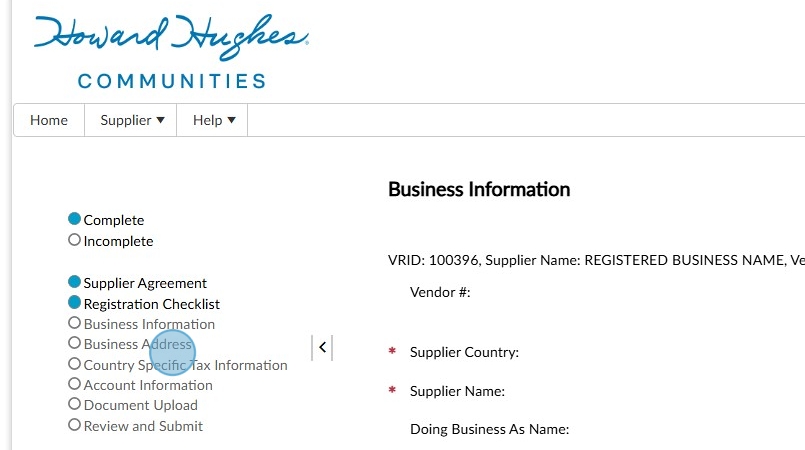
Navigate to the profile section to enter current information, then click Submit to send the update for review. You will receive an email when your submission is approved.

A screenshot of a web page.

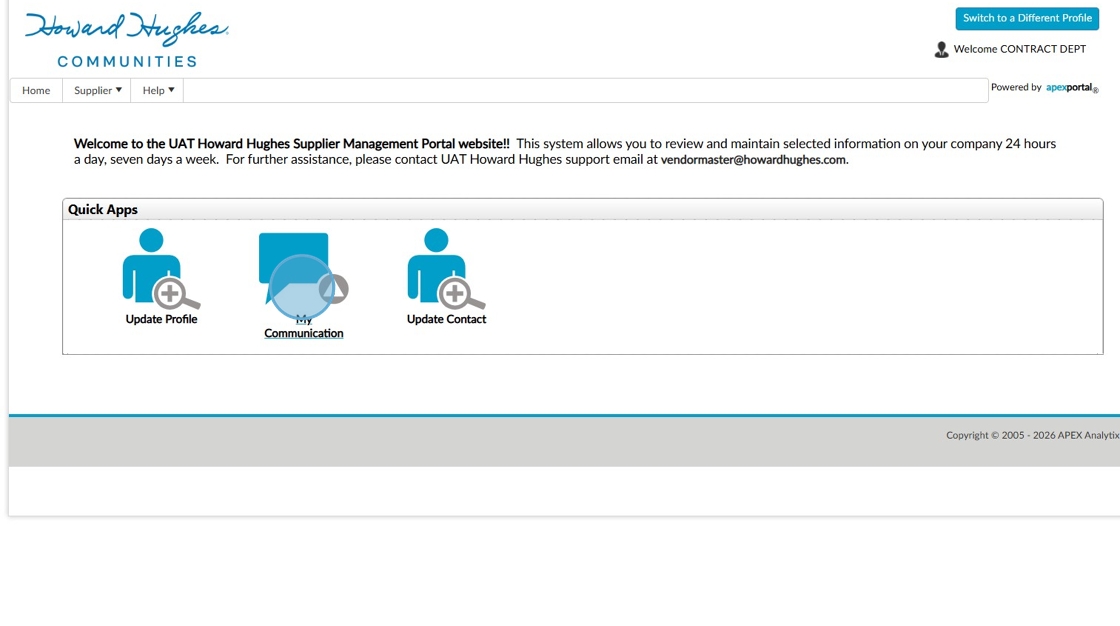
The HHC team may request additional information to support their review process. To view these requests, click the My Communication icon.

Screenshot of the Howard Hughes Supplier Management Portal homepage showing navigation options: Update Profile, Communication, and Update Contact, with a welcome message at the top.

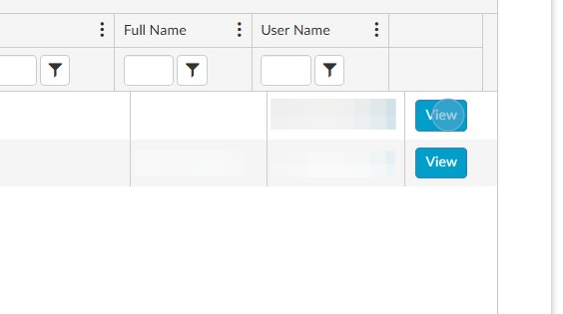
Click View to review messages from the HHC review team.

A table displays columns for Full Name and User Name with corresponding blue

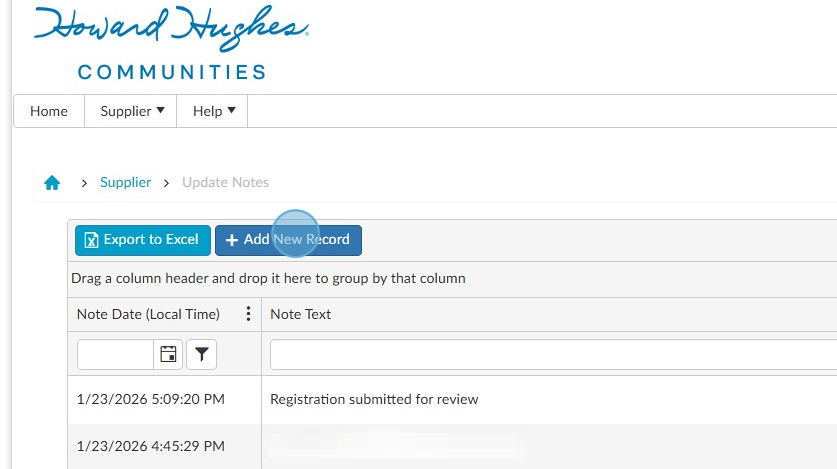
Click Add New Record to respond.

A web page titled

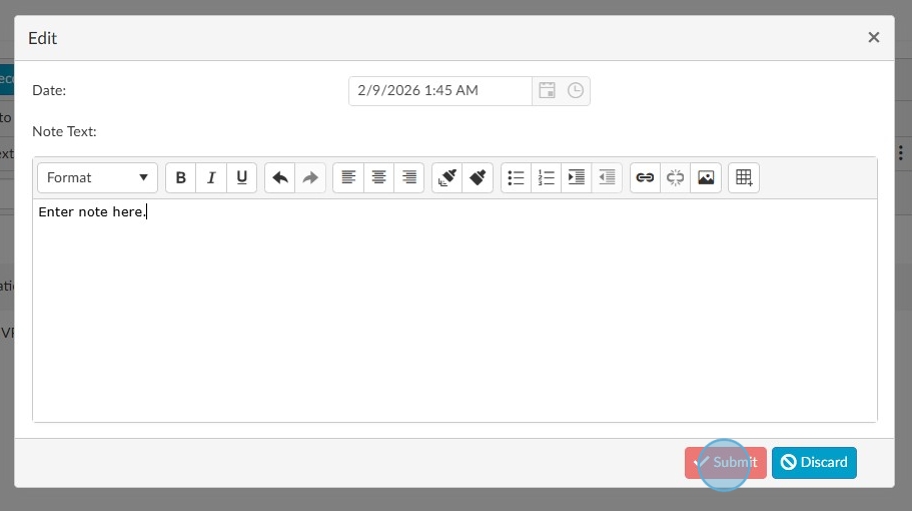
Enter your note, then click Submit.

Edit note window with a date field, rich text toolbar, text area showing

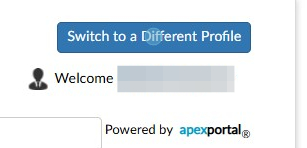
Tip: If you need to update additional profiles, click Switch to a Different Profile to select another profile.

Webpage interface showing a

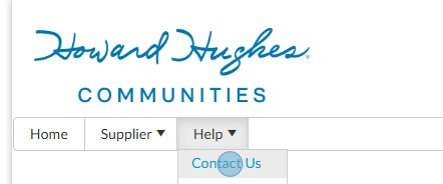
If you have questions or need assistance, contact our team through the Contact Us page.

A screenshot of a contact us.